Quick start
- Choose a sharp PNG, JPEG, or WebP image in Image file. Use typed or printed text with good contrast.
- Keep the image within 10 MiB, 8 million pixels, and 8,192 pixels on either side.
- Choose the matching OCR language: English, Spanish, French, German, Italian, or Portuguese.
- Press Read text. The browser loads the OCR files after this action. Use Cancel OCR if you need to stop.
- Compare the extracted text with the image, especially names, totals, dates, and codes. Then use Copy result or select the text.
Best uses
Start here if one of these sounds like your job. The examples below show which inputs matter most.
- Copy a clear screenshot line without retyping it.
- Turn a label, receipt, or typed note photo into editable text.
- Grab text from a simple document image for a draft or study note.
- Pull a tracking number, product code, or receipt total into a draft before checking every character.
What this OCR tool does
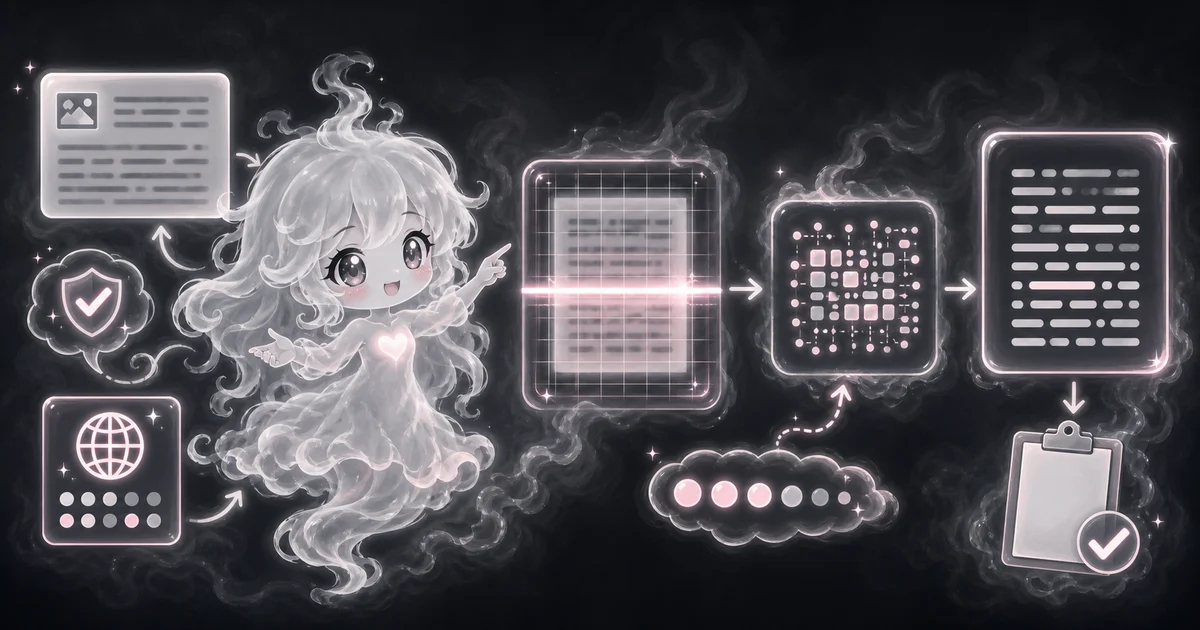
The Image to Text OCR Tool turns a clear image of typed or printed words into editable text in your browser. Image quality changes the result, so use it for sharp screenshots, labels, receipts, and simple document photos when you want a draft copy without uploading the image to Access Free Tools.
The tool decodes the selected image and runs OCR in this browser tab without uploading the image to Access Free Tools.
Tesseract.js worker, WebAssembly core, and selected language files load from Access Free Tools after you press Read text. The first run can take longer while those files load.
This describes OCR processing. The Privacy Policy explains separate site analytics and session-replay handling.
How to read the result
Start with the extracted text, then check the original image. OCR is useful, but it can still miss punctuation, split columns badly, or swap similar-looking characters.
- Treat the result as a draft copy, not a certified transcript.
- If the image says INV-10018 or $42.50, check those exact characters before pasting.
- Columns, small text, blur, glare, and sideways photos can lower accuracy because OCR depends on image quality and careful cropping.
- If the output looks messy, crop closer, brighten the image, and run OCR again.
Common mistakes to avoid
The safest way to use the result is to compare it with the original input and think about the real task you are doing.
- Do not trust OCR for totals, serial numbers, passwords, private IDs, legal wording, medical records, or bank details without checking the original.
- Do not use a random image-to-text tool for sensitive files just because it is fast.
- Do not expect handwriting, cursive, decorative fonts, or low-light photos to work as cleanly as typed text.
- Do not ignore 0/O, 1/l/I, 5/S, and 8/B mistakes. Those are small errors that can break a form or code.
Try the synthetic English sample
This sample contains one printed line: ACCESS FREE TOOLS 12345. It is a synthetic QA image from the existing English browser check, with black 64px Arial text on a white 1,200 by 220 pixel PNG.
Choose the saved PNG in Image file, select English, and press Read text. Compare the extracted line with ACCESS FREE TOOLS 12345, including all five digits. The reference text helps you check the workflow without using a receipt or private screenshot.
After checking the line, press Copy result and paste it into a text editor. If the browser blocks copying, select the output text and copy it yourself.
This simple sample checks one English image. It does not establish accuracy for other languages, handwriting, crowded documents, or photos from your device.
Reference text in the synthetic sample
ACCESS FREE TOOLS 12345
Prepare the image before choosing it
The OCR tool accepts one still PNG, JPEG, or WebP image at a time. It does not accept PDF documents, SVG files, GIF files, or animated images. Export the page or frame you need as a supported still image first.
Keep the file within 10 MiB, with no more than 8 million pixels and no side longer than 8,192 pixels. MiB measures bytes: 10 MiB is 10,485,760 bytes. Pixel limits apply to the image dimensions, even when its compressed file is small.
Crop empty borders, straighten the text, or reduce glare before selecting the file. This page does not offer crop, rotation, brightness, or contrast controls. Leave complete letters and numbers inside the image.
Research and references
These references shaped the tool behavior, browser-only model approach, privacy notes, and result limits.
Worked examples for Image to Text OCR Tool
Copy the text, then check INV-10018 and $42.50 against the image.
Use the extracted warning only after checking the number 4.
Copy the lines into a draft, then fix line breaks and punctuation.
Check every letter, number, and dash before pasting the code anywhere official.
FAQ in plain language
When should I use the Image to Text OCR Tool?
Use it when a clear screenshot, label, receipt, or typed note has text you do not want to retype. It is best for simple printed text, not messy handwriting or official transcripts.
What do the main Image to Text OCR Tool inputs mean?
Choose one still PNG, JPEG, or WebP image in Image file. Select the OCR language that matches the printed text: English, Spanish, French, German, Italian, or Portuguese. Crop or clean up the image before choosing it, then press Read text.
Does the OCR image upload to Access Free Tools?
The OCR operation reads the selected image in your browser tab without uploading it to Access Free Tools. The Tesseract.js worker, core, and selected language files load from Access Free Tools after you press Read text. See the Privacy Policy for separate site analytics and session-replay handling.
How should I read the Image to Text OCR Tool answer?
Start with the extracted text and compare it with the original image. Language is the selected OCR language, Characters counts the extracted text, and Confidence is the OCR engine's reported score, not a guarantee that every character is correct. Check names, totals, dates, and codes before using Copy result.
What kind of image gives the best OCR result?
Image quality changes OCR accuracy. Use a sharp, straight, high-contrast image. Crop close to the text, avoid glare, and zoom in before taking a screenshot if the original text is tiny.
Can this read handwriting?
Not reliably. Tesseract-style OCR works much better on typed or printed text. Handwriting, cursive, decorative fonts, and low-light photos can produce messy output.
Why can the first OCR run take longer?
After you press Read text, the browser loads the OCR worker, WebAssembly core, and selected language data. Later runs may reuse cached files. A large or unclear image can still take longer, and Cancel OCR stops the current run.
Related tools
- Image ClassifierClassify an uploaded image in your browser with model confidence notes.
- Text SummarizerSummarize pasted notes into a browser-generated draft.
- Keyword ExtractorPull repeated and important words or phrases from pasted text.
Keep exploring
If this guide is close but not exact, these links keep you near the same kind of problem.
- AI ToolsBrowse the full category for related tools that help with the same job.
- All free toolsSearch the complete Access Free Tools library by task, category, or tool name.
- All tool and utility guidesFind more plain-language examples, logic notes, mistakes, and result explanations.
- Free tool resourcesStart here when you are not sure which tool page fits.
Privacy and copying results
Recent answers stay visible only while you work in the current browser tab. They are not sent to a server.
Copy result copies the text shown in the result. If no readable text is found, it copies the displayed message instead. The image, filename, language, and confidence value are not copied. Paste extracted text into a text editor to correct names, numbers, punctuation, and line breaks. If copying is blocked, use Select text and your device's Copy command.