Quick start
- Paste or type the exact plain-text draft you want to check.
- Use the examples when you want to see how sentence, paragraph, and line counts behave.
- Press Count words to refresh the result after editing.
Best uses
Use the guide when length changes what you do next: trim a draft, expand a thin section, estimate reading time, or check whether a pasted version still matches the original.
- Check blog drafts, essays, product copy, and article sections before publishing.
- Estimate reading time from a rough word count.
- Count sentences, paragraphs, and lines while editing text.
- Compare word count and character count in one local browser tool.
What this tool helps with
The Word Counter helps writers, students, site owners, and editors understand the size of a draft before publishing. It is especially useful when a tool, class, search snippet, or platform has a practical length target.
Match each input label on the tool to the exact draft text you want to count, including headings, line breaks, captions, URLs, and notes you plan to keep.
The logic in plain language
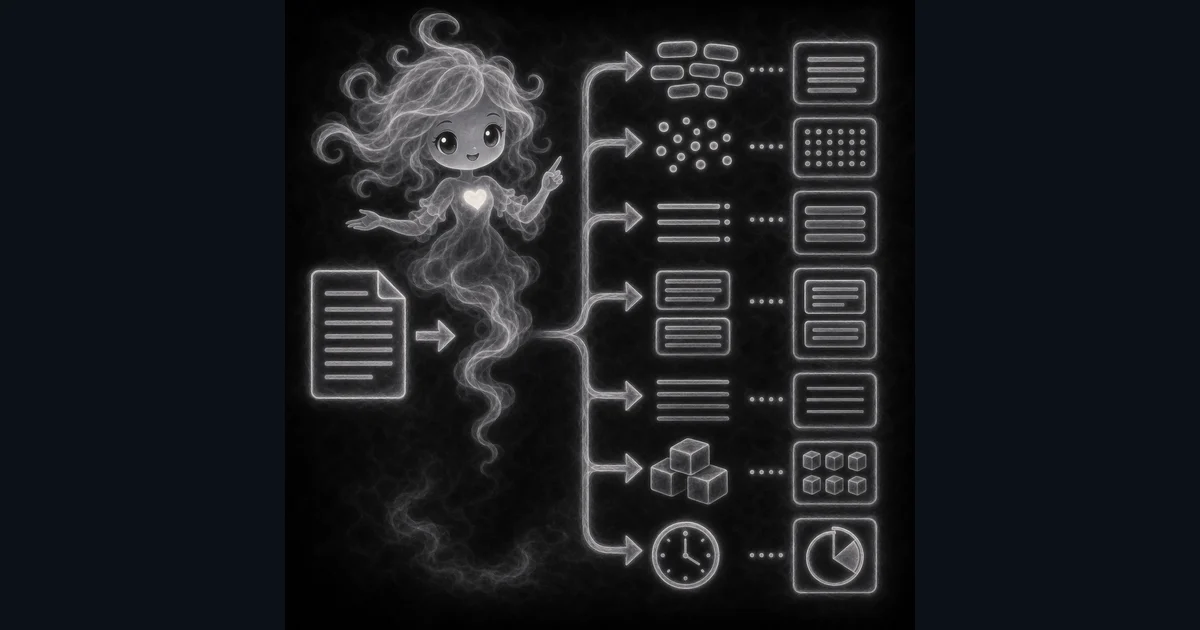
In plain language: The tool splits plain text into word-like groups, counts the surrounding text structure, and estimates reading time at about 200 words per minute. The examples on the page are there so you can compare your inputs with a filled-out example before copying the answer.
The browser looks for word-like groups, counts the surrounding characters, sentences, paragraphs, lines, and UTF-8 bytes, then estimates reading time at about 200 words per minute.
How to read the answer
Read the word count first, then use the smaller lines to catch length problems that a single number hides. Character count helps with snippets and captions, paragraph and line counts help with formatting, and bytes help when a technical field cares about encoded size.
- The headline number is the word count.
- Characters, sentences, paragraphs, lines, and UTF-8 bytes explain the text from different angles.
- Reading time is a rough estimate, not a promise about every reader.
Common mistakes to avoid
Most word-count mistakes come from counting the wrong version of the draft. Copy the same text you will submit, including headings, captions, footnotes, URLs, emoji, and blank lines when those parts matter.
- Do not assume every publishing platform counts emojis, punctuation, and links the same way.
- Do not optimize only for word count; helpful content still needs clear answers and useful examples.
- Check the target editor when a school, client, or social platform has a strict limit.
A quick word-count example
Paste this sentence: `Access Free Tools helps people finish quick browser tasks.` The tool counts 8 words and shows a tiny reading-time estimate because the text is shorter than a normal paragraph.
Now add a second paragraph or a URL. The word count, line count, character count, and byte count can move in different ways, which is why the guide asks you to check more than one result before submitting strict text.
When word count is not enough
A 900-word article can still feel thin if it dodges the question, and a 120-word answer can be enough when it solves the problem clearly. Use the count as a guardrail, then reread the draft for usefulness.
For search snippets, captions, bios, forms, and code fields, character count or byte length can matter more than words. The matching Character Counter is better when the target limit is a hard character number.
Strict-limit checklist
Before you submit to a school portal, CMS, client form, or social platform, paste the final text into the target field if you can. That final field may count rich text, emoji, URLs, footnotes, or hidden formatting differently from a browser-side draft checker.
- Count the final version, not an earlier draft.
- Include headings, captions, footnotes, and URLs if the target field includes them.
- Check whether the target asks for words, characters, characters without spaces, or bytes.
- Treat reading time as a planning estimate, not a rule for every reader.
Research and references
These references help explain character references, JavaScript string length, and UTF-8 byte encoding behind the non-word totals. Platform word-count rules can still differ, so use the final app for strict limits.
Worked examples for Word Counter
Word count and reading time
Words, characters, and bytes
Paragraph and line counts
FAQ in plain language
When should I use the Word Counter?
Use it when your task matches one of these common needs: Check blog drafts, essays, product copy, and article sections before publishing. Estimate reading time from a rough word count. It works best when you already know the exact text, spacing, line breaks, format, or platform rule the page asks for.
What is the Word Counter doing with my inputs?
In plain language: The tool splits plain text into word-like groups, counts the surrounding text structure, and estimates reading time at about 200 words per minute. The examples on the page are there so you can compare your inputs with a filled-out example before copying the answer.
What do the main Word Counter inputs mean?
Text to count: Paste the exact draft you want checked, including headings, line breaks, captions, or notes you plan to keep. Words: The count is based on word-like groups of letters and numbers, so punctuation alone does not become a word. Reading time: The estimate uses about 200 words per minute, which is helpful for planning but not a promise about every reader.
How should I read the Word Counter answer?
Read the output next to your original text. If the tool changes spacing, line breaks, encoding, capitalization, or word breaks, compare a small sample before copying the whole result into another app.
What should I double-check before trusting the answer?
Different editors and social platforms can count emojis, punctuation, links, line breaks, or hyphenated words differently. Also check the target app limit, spacing, line breaks, emoji, and selected mode because small text changes can change the result.
Why can my word count differ from another editor?
Editors can treat hyphenated terms, emojis, URLs, captions, footnotes, comments, or hidden formatting differently. Use this Word Counter for a fast browser check, then confirm inside the exact school, CMS, client, or social platform field when the limit is strict.
Should I count headings, captions, or footnotes too?
Count whatever the target asks for. If a teacher, client, CMS, or form includes headings, captions, notes, footnotes, or pasted URLs in the limit, paste those parts into the Word Counter too. If the target excludes them, count only the body text you will submit.
Related tools
- Character CounterCount characters, words, lines, no-space text, and UTF-8 bytes.
- Text Case ConverterConvert text across 8 case styles: uppercase, lowercase, title case, sentence case, camelCase, PascalCase, snake_case, and kebab-case.
- Slug GeneratorTurn titles and phrases into clean lowercase URL slugs with optional length control.
Keep exploring
If this guide is close but not exact, these links keep you near the same kind of problem.
- Text ToolsBrowse the full category for nearby text tools and editing checks.
- All free toolsSearch the complete Access Free Tools library by task, category, or tool name.
- All tool and utility guidesFind more plain-language examples, logic notes, mistakes, and result explanations.
- Free tool resourcesStart here when you are not sure which tool page fits.
Privacy and copying results
Recent answers stay visible only while you work in the current browser tab. They are not sent to a server.
Use Copy answer when you want to paste the count or result into notes, schoolwork, a message, or another document. Check spacing, line breaks, emoji, byte limits, and platform rules before copying.