Quick start
- Paste one short draft into Message to check. Enter at least 12 characters after trimming spaces at the ends.
- Press Check tone. Model and runtime files load after this action when the browser needs them.
- Read the closest label among friendly or helpful, formal or careful, urgent or direct, and unclear or mixed.
- Tone model result shows label scores as percentages. Tone estimate uses local wording and punctuation clue scores when the model is unavailable.
- Compare the result with your audience, relationship, and situation. Edit the message yourself before sending it.
Best uses
Start here if one of these sounds like your job. The examples below show which inputs matter most.
- Review a short email before sending it to a customer, teacher, or teammate.
- Make a support reply sound calmer before it leaves the help desk.
- Compare a casual caption with a more formal rewrite.
- Spot wording that may feel urgent, blunt, or unclear in a chat message.
What this AI tool does
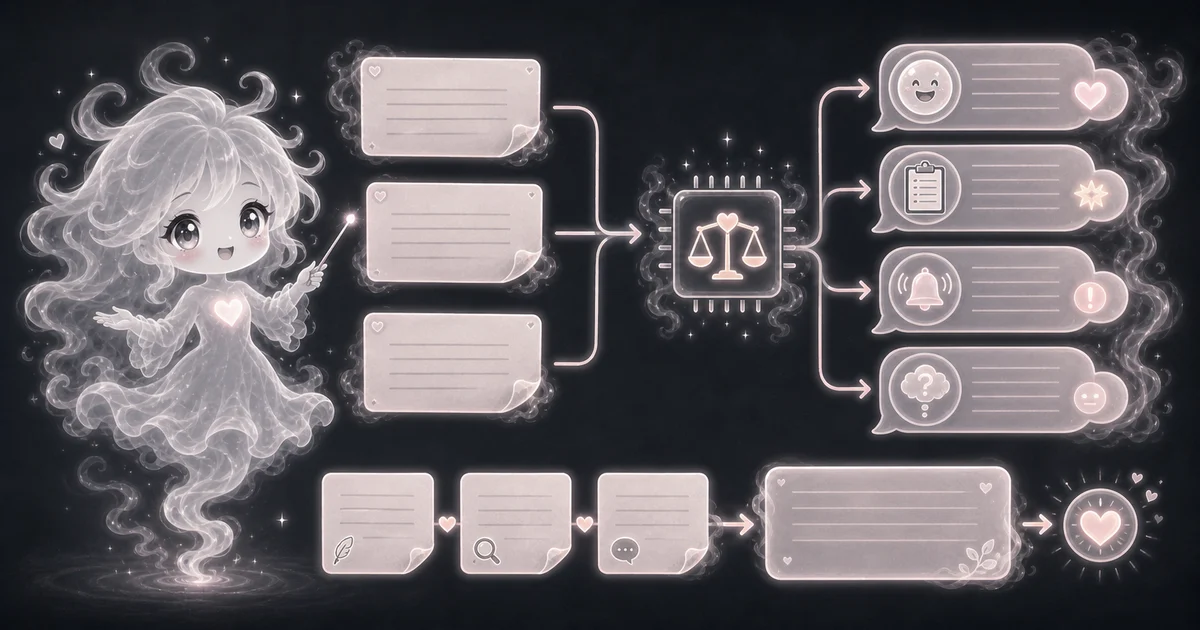
The Tone Checker reviews how a short message may feel to a reader. It helps you spot friendly or helpful, formal or careful, urgent or direct, and unclear or mixed wording before you send an email, support reply, caption, or chat note.
Tone checking processes the pasted draft in this browser tab without uploading it to Access Free Tools or a model host for analysis.
After Check tone, Transformers.js loads the quantized Xenova/mobilebert-uncased-mnli model from Access Free Tools. The browser runtime may load from jsDelivr. Those hosts receive asset requests, rather than your draft.
If model loading or analysis fails, Tone estimate ranks local wording and punctuation clues. Read those numbers as clue scores, rather than model confidence percentages.
This describes tone checking. The Privacy Policy explains separate site analytics and session-replay handling.
How to read the result
Start with the main result, then read the supporting notes. Browser AI tools are useful helpers, but they can still be wrong, incomplete, or unsure.
- The top label is the closest match among friendly or helpful, formal or careful, urgent or direct, and unclear or mixed.
- A result such as urgent or direct at 64% means the wording may feel time-sensitive or blunt; it is not proof of the writer intent.
- Notes point to words, punctuation, and phrasing patterns that may affect how the text feels to a reader.
- The tool cannot know your audience, relationship, culture, humor, sarcasm, or full situation.
Common mistakes to avoid
The safest way to use the result is to compare it with the original input and think about the real task you are doing.
- Do not use tone output to accuse someone of intent.
- Do not ignore audience expectations or workplace style rules.
- Do not use the result as evidence for HR issues, legal risk, mental health, customer-safety decisions, or personality judgments.
- Do not paste private conflict messages unless you are comfortable processing them in your browser tab.
- Do not assume a direct message is rude; a launch request like "Please fix this immediately before launch" may simply be time-sensitive.
Research and references
These references shaped the tool behavior, browser-only model approach, privacy notes, and result limits.
Worked examples for Tone Checker
Likely friendly or helpful, with a quick check for missing detail
Likely urgent or direct, not automatically rude or wrong
Likely formal or careful, with audience context still needed
FAQ in plain language
When should I use the Tone Checker?
Use it when you want a quick browser-side AI helper for this task: Review a short email before sending it to a customer, teacher, or teammate. Make a support reply sound calmer before it leaves the help desk. It is best for drafts, checks, and learning, not final expert decisions.
What do the main Tone Checker inputs mean?
Paste at least 12 characters from one short message or draft. Emails, support replies, captions, and workplace chat notes work best when they are 1 to 5 sentences and still have enough context to show word choice, punctuation, and phrasing.
How should I read the Tone Checker result?
Read the top label as the closest writing tone among friendly or helpful, formal or careful, urgent or direct, and unclear or mixed. A result such as urgent or direct at 64% means the wording may feel time-sensitive or blunt; it is not proof of the writer intent.
What should I double-check before trusting the Tone Checker?
Check audience, role, culture, relationship, humor, sarcasm, and the real situation yourself. Do not use tone output to judge personality, intent, HR issues, legal risk, mental health, or customer-safety decisions.
Does this AI tool upload my input to Access Free Tools?
Tone checking runs in this browser tab without uploading the draft to Access Free Tools or a model host for analysis. Model files load from Access Free Tools and the runtime may load from jsDelivr. Those asset requests expose normal connection information to the host, without including the draft. See the Privacy Policy for separate site analytics and session-replay handling.
Why can the first run take longer than normal?
After Check tone, the browser may need to load the quantized Xenova/mobilebert-uncased-mnli model and its runtime. Later runs may reuse cached files. If the model is unavailable, Tone estimate shows local word and punctuation clue scores instead of model confidence percentages.
Can I rely on the AI result as a final answer?
No. Treat it as a helpful estimate or draft. AI and text-analysis tools can misunderstand short inputs, blurry images, unusual wording, mixed languages, or topics outside their training data.
Related tools
- Sentiment AnalyzerCheck whether text reads positive, negative, or uncertain in your browser.
- Reading Level CheckerCheck English reading grade and find the first sentence to simplify.
- Text Case ConverterConvert text across 8 case styles: uppercase, lowercase, title case, sentence case, camelCase, PascalCase, snake_case, and kebab-case.
Keep exploring
If this guide is close but not exact, these links keep you near the same kind of problem.
- AI ToolsBrowse the full category for related tools that help with the same job.
- All free toolsSearch the complete Access Free Tools library by task, category, or tool name.
- All tool and utility guidesFind more plain-language examples, logic notes, mistakes, and result explanations.
- Free tool resourcesStart here when you are not sure which tool page fits.
Privacy and copying results
Recent answers stay visible only while you work in the current browser tab. They are not sent to a server.
Use Copy answer when you want to save the inputs and result in notes, homework, a message, or a project list. Check the units, labels, and limits before copying.