Quick start
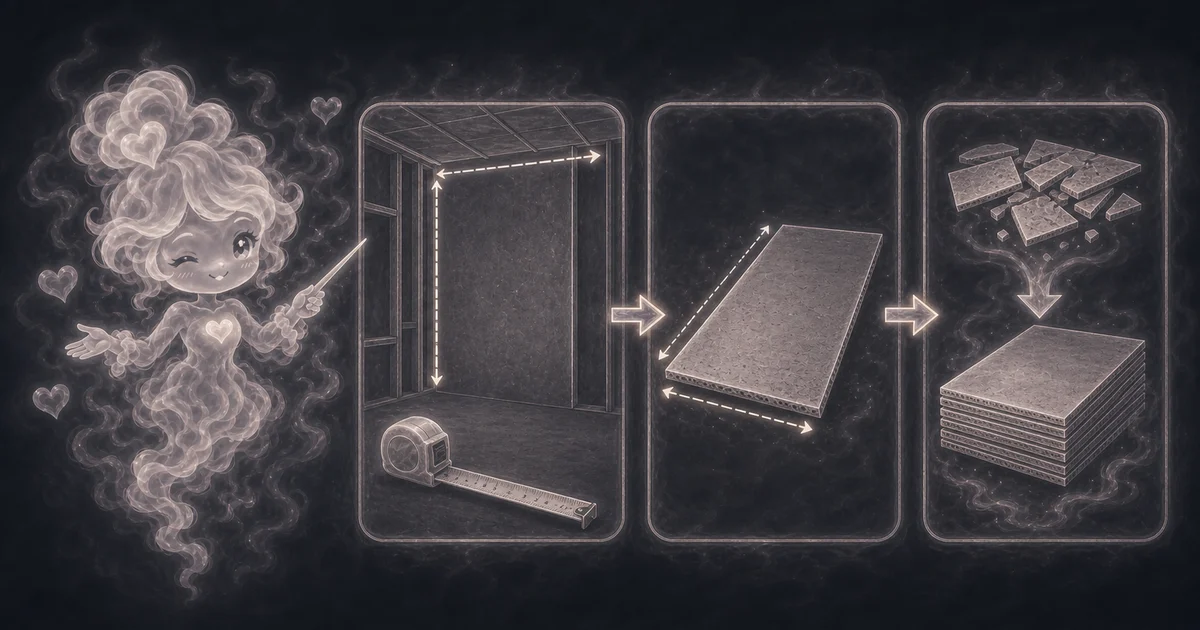
- Enter the wall or ceiling area in square feet. Add each wall length times height, and add ceiling length times width if you are hanging board overhead.
- Enter the drywall sheet length and width in feet. Common sheet sizes are 4 by 8, 4 by 10, and 4 by 12 feet, but use the size you can deliver and lift safely.
- Add waste for cuts, broken corners, layout changes, and small offcuts.
Best uses
Start here if one of these sounds like your job. The examples below show which inputs matter most.
- Estimate drywall sheets for a room or basement wall area.
- Compare 4x8, 4x10, and 4x12 sheet sizes.
- Add a waste allowance for cuts and broken sheets.
- Plan a rough material count before measuring openings and layout.
What this calculator is solving
The Drywall Calculator estimates whole sheets from wall or ceiling square footage. It works best after you already have a measured area or a rough takeoff from room dimensions, then want a quick panel count before checking tape, mud, screws, and code details.
Match each input label on the calculator to the real measurement, amount, rate, unit, or setting for your job.
The formula in plain language
In plain language: The calculator uses sheet area = sheet length x sheet width, adjusted project area = project area x (1 + waste percent / 100), and whole sheets = ceiling(adjusted project area / sheet area). The examples on the page are there so you can compare your inputs with a drywall sheet example before copying the answer.
The example cards on the calculator page show a complete set of inputs and the kind of answer you should expect.
How to read the answer
Read the main result first. Then check the smaller lines for the totals, units, ranges, counts, or formula steps behind it.
- The main answer is whole drywall sheets needed.
- Sheet area shows how many square feet one panel covers.
- Area with waste shows the adjusted project area before rounding up sheets. A 480 square foot project with 10% waste becomes 528 square feet.
- The default 480 square foot example with 4 by 8 sheets and 10% waste comes out to 17 sheets.
Common mistakes to avoid
If the answer looks strange, the most likely cause is a small input mismatch: a mixed unit, copied value, wrong mode, missing label, or result used for the wrong job.
- Do not double-subtract doors or windows if your takeoff already removed them.
- Do not assume every room lays out cleanly with no offcuts. Closets, ceilings, stairs, short returns, and broken corners can use extra sheets.
- Check thickness, moisture resistance, fire requirements, screw schedule, tape, joint compound, corner bead, delivery, and local rules before buying.
Research and references
These references help check the measurements, units, limits, or safety notes used in this guide.
Worked examples for Drywall Calculator
17 sheets
17 sheets
7 sheets
4 sheets
FAQ in plain language
When should I use the Drywall Calculator?
Use it when your task matches one of these common needs: Estimate drywall sheets for a room or basement wall area. Compare 4x8, 4x10, and 4x12 sheet sizes. It works best when you already know project square footage, sheet length, sheet width, and waste percent.
What is the Drywall Calculator doing with my inputs?
In plain language: The calculator uses sheet area = sheet length x sheet width, adjusted project area = project area x (1 + waste percent / 100), and whole sheets = ceiling(adjusted project area / sheet area). The examples on the page are there so you can compare your inputs with a drywall sheet example before copying the answer.
What do the main Drywall Calculator inputs mean?
Wall or ceiling area: the measured surface area you plan to board before extra sheets are added. Sheet size: the drywall panel dimensions, such as 4 by 8 or 4 by 12 feet. Waste percent: extra sheets for cuts, broken corners, offcuts, and layout mistakes.
How should I read the Drywall Calculator answer?
Read the headline estimate first, then check the material, waste, coverage, and unit lines. For project tools, the supporting lines are often the difference between a rough idea and a list you can actually shop from.
What should I double-check before trusting the answer?
This estimates sheets only. Real drywall planning also depends on openings, ceilings, sheet orientation, seams, thickness, fire rating, moisture rating, screw schedule, tape, joint compound, corner bead, lift help, delivery, breakage, and local building rules. Also check whether the area already removes doors and windows, and remember that tape, mud, screws, corner bead, thickness, moisture rating, and fire rating are separate buying decisions.
What does the Drywall Calculator include?
It estimates whole drywall panels from the area, sheet size, and waste percent you enter. It does not estimate tape, joint compound, screws, corner bead, labor, delivery, or finishing level.
How do I get the wall or ceiling area?
For each wall, multiply wall length by wall height, then add the walls together. For a ceiling, multiply length by width. Enter the total square footage you want covered by drywall.
Related tools
- Paint CalculatorEstimate interior wall paint gallons from room size, openings, coats, coverage, and extra percent.
- Square Footage CalculatorCalculate square feet, square yards, and square meters from length, width, and quantity.
- Wallpaper CalculatorFigure out how many wallpaper rolls to buy, plus rough material cost when you add a roll price.
Keep exploring
If this guide is close but not exact, these links keep you near the same kind of problem.
- Home & ProjectsBrowse the full category for related tools that help with the same job.
- All free toolsSearch the complete Access Free Tools library by task, category, or tool name.
- All calculator and utility guidesFind more plain-language examples, formulas, mistakes, and result explanations.
- Free calculator resourcesStart here when you are not sure which calculator page fits.
Privacy and copying results
Recent answers stay visible only while you work in the current browser tab. They are not sent to a server.
Use Copy answer when you want to save the inputs and result in notes, homework, a message, or a project list. Check the units, labels, and limits before copying.