Quick start
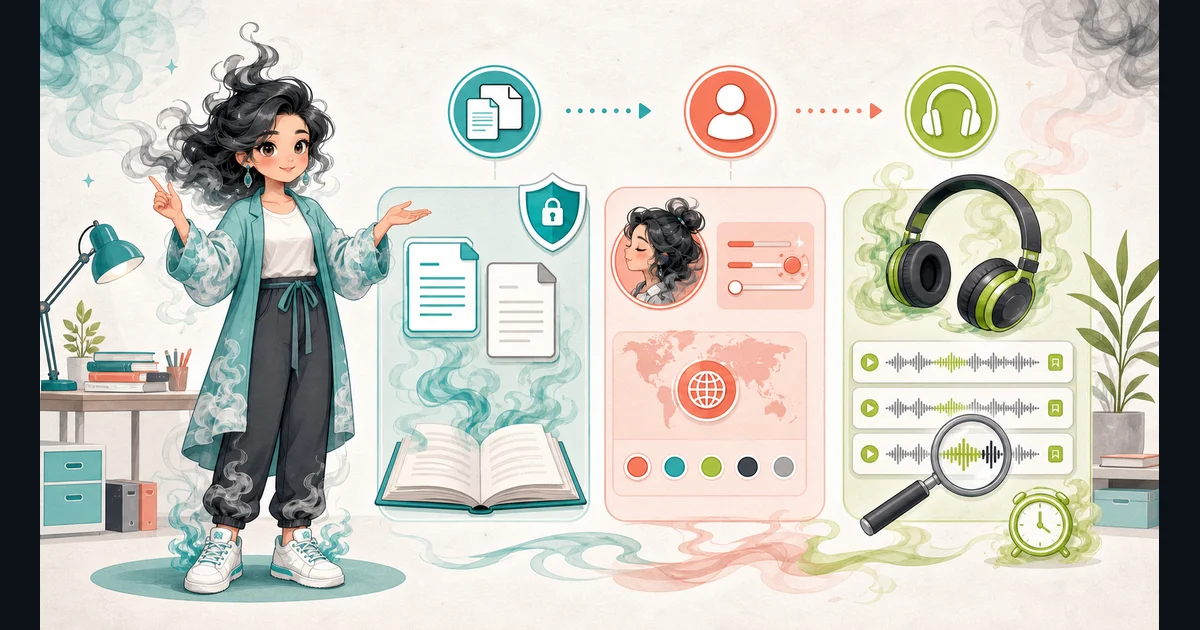
- Paste up to 10,000 characters, or open a local TXT or Markdown file up to 64 KB or an EPUB up to 8 MB. The document is parsed locally and is not uploaded.
- Choose Single MP3 or Chapter MP3s. Review chapter names, text, and order before generating anything.
- Choose Supertonic for multilingual text or Kokoro 82M HQ for US and UK English.
- Choose a supported language, one fixed voice preset, and a reading speed from 0.9x to 1.5x. Kokoro has 28 grouped US and UK English voices.
- In chapter mode, use the default voice for new chapters, apply it to every chapter, or choose a different fixed voice on individual chapters.
- Play the pre-recorded samples to compare voices without loading a model, then confirm your rights and the model-use terms before pressing Generate MP3.
- Allow the selected model to download on first use: about 398 MB for Supertonic, about 326 MB for full-precision Kokoro WebGPU, or about 92 MB for Kokoro compatibility mode.
- Check the estimated duration and MP3 size before downloading the model. Then play and download the result before closing or refreshing the tab.
- In chapter mode, download each MP3 separately or create an ordered ZIP containing only the completed MP3 files.
Best uses
Start here if one of these sounds like your job. The examples below show which inputs matter most.
- Create private listening copies of your own notes, drafts, stories, or public-domain text.
- Download spoken instructions or study notes as a standard MP3 file.
- Turn permitted Markdown headings or an EPUB reading order into named, reorderable chapter MP3s.
- Give narration, quoted sections, or dialogue chapters different fixed voices while keeping one model loaded.
What this browser text-to-MP3 tool does
The Text to Speech MP3 Generator runs either pinned Supertonic 3 or pinned Kokoro 82M with its MP3 encoder in a browser worker. It is for text you wrote, public-domain material, or text you have permission to convert.
The pasted text stays inside the browser tab and is sent only to the dedicated local worker. There is no TTS upload or server queue.
The selected model downloads on first use: about 398 MB for multilingual Supertonic, about 326 MB for full-precision English Kokoro on WebGPU, or about 92 MB for Kokoro compatibility mode. Only that model runs in a dedicated browser worker, where inference and MP3 creation stay local.
How to read the result
Start with short, low-risk text. Download and listen to the MP3 before converting something longer.
- Every fixed voice has a short pre-recorded sample at 1.0x speed. Playing a sample loads only that MP3, not the speech model, and it never uses your text.
- Model loading downloads the ONNX files from the pinned Hugging Face revision. It does not send your text to Hugging Face.
- Supertonic prefers WebGPU and falls back to WebAssembly. Kokoro prefers full-precision WebGPU and automatically retries with its q8 WebAssembly compatibility model when needed.
- A 90-second no-progress watchdog stops a stalled worker. Kokoro gets one automatic compatibility retry instead of leaving the Stop button running forever.
- Only one model worker stays loaded. Changing the model unloads the previous one before the new model can start.
- Long Kokoro input is divided into ordered sections before generation instead of being silently truncated at the model limit.
- Single mode provides one 128 kbps mono MP3. Chapter mode generates one chapter at a time through the same loaded worker, preserves completed files after a later failure, and allows one retry for the failed chapter.
- Every chapter keeps its own voice assignment. Supertonic chapter voices use the selected text language. Kokoro chapter voices automatically use their matching US or UK English dialect.
- Optional MP3 and ZIP names are cleaned for Windows and macOS. The chapter ZIP contains separate audio files only, never the source text.
- Favourite and recent voice IDs stay in local browser storage. Text, document names, audio, language, and voice choices are not stored there.
- Markdown headings and the EPUB reading spine become editable chapters. Unsafe paths, scripts, remote resources, encrypted EPUBs, nested archives, and suspicious compression are rejected.
- Supertonic Language not specified is best-effort processing, not detection. Kokoro browser support is currently US and UK English only.
- Listen for names, dates, abbreviations, formulas, numbers, missing lines, repeated lines, and mixed-language pronunciation before sharing the audio.
Common mistakes to avoid
The safest way to use the result is to compare it with the original input and think about the real task you are doing.
- Do not convert a book, article, course, or private document unless you have permission.
- Do not assume browser processing removes copyright, consent, or prohibited-use responsibilities.
- Do not describe either model's fixed voices as voice cloning or upload reference audio. The pilot supports neither feature.
- Do not assume a successful job means every word was pronounced correctly.
- Do not close or refresh the tab before downloading the MP3 because the browser-only result is not stored by Access Free Tools.
- Do not skip the imported chapter review. Navigation pages, unusual markup, names, and abbreviations can still need a manual correction before speech generation.
- Do not switch models to create character voices within one chapter set. Pick one model, then assign its fixed voices per chapter so the browser avoids large model swaps.
- Do not treat an open model as unrestricted. Supertonic uses OpenRAIL-M terms, while Kokoro and its browser code use Apache-2.0 components with separate attribution requirements.
Research and references
These primary sources define the browser runtime, pinned model capabilities, and OpenRAIL-M license boundary. Access Free Tools does not claim ownership of the model or preset voices.
- Supertonic: official model repository, language list, and archive notice
- Supertonic: official built-in voice descriptions and use cases
- Supertonic 3 model weights: OpenRAIL-M license terms
- Kokoro: official browser implementation and fixed English voices
- Kokoro 82M: pinned ONNX model files and voice data
- Kokoro 82M model: Apache-2.0 license
- Phonemizer.js: browser wrapper used for Kokoro English phonemes
- eSpeak NG: speech synthesis and phoneme engine
- wasm-media-encoders: browser MP3 encoder
Worked examples for Text to Speech MP3 Generator
One 128 kbps MP3 held in the browser tab for listening and download
Local audio playback and an MP3 download without uploading the notes
Two labelled MP3 results and one ordered audio-only ZIP from the same loaded Kokoro model
English speech from full-precision WebGPU or the automatic q8 compatibility fallback as a downloadable MP3
FAQ in plain language
How do I turn text into an MP3?
Paste text or open a local TXT, Markdown, or EPUB file with up to 10,000 characters combined. Choose single or chapter mode, compare the voice samples, select a language, voice, and speed, accept the rights notice, then generate and download the MP3 files.
Does playing a voice sample download the speech model?
No. Each fixed voice has a short pre-recorded MP3 sample. Playing it downloads only that small audio file, not the Supertonic or Kokoro model, and it does not use your text.
What do the main Text to Speech MP3 Generator inputs mean?
The main input is up to 10,000 characters of permitted text, either pasted directly or opened locally from TXT, Markdown, or EPUB. Choose one MP3 or named chapters, then select a browser model, language, fixed voice, and reading speed. Document parsing, inference, and MP3 creation all run in the browser.
How should I read the Text to Speech MP3 Generator answer?
Check the estimated duration and file size, then allow the selected model download to finish. Listen for names, numbers, abbreviations, and missing lines. Single mode gives one MP3; chapter mode gives separate ordered MP3s and a text-free ZIP.
What should I double-check before trusting the Text to Speech MP3 Generator?
Check that you have permission to convert the text, that it contains no sensitive information, and that the selected model, language, and fixed voice fit the material. Listen for names, numbers, abbreviations, missing lines, and pronunciation errors before sharing the audio.
Does Access Free Tools upload my text?
No. The text stays in your browser tab and is sent only to the local browser worker. It is not uploaded to Access Free Tools or included in requests to the model host.
Where is the text-to-speech model running?
The selected Supertonic or Kokoro model runs in a dedicated worker inside your browser. Access Free Tools serves the page, while pinned model files are downloaded from Hugging Face only after you start generation.
Related tools
- Text SummarizerSummarize pasted notes into a browser-generated draft.
- Reading Level CheckerCheck English reading grade and find the first sentence to simplify.
- Word CounterCount words, characters, sentences, paragraphs, lines, and estimated reading time.
Keep exploring
If this guide is close but not exact, these links keep you near the same kind of problem.
- Kokoro versus Supertonic browser comparisonCompare voice and language choices, model downloads, MP3 controls, privacy limits, and model terms.
- AI ToolsBrowse the full category for related tools that help with the same job.
- All free toolsSearch the complete Access Free Tools library by task, category, or tool name.
- All tool and utility guidesFind more plain-language examples, logic notes, mistakes, and result explanations.
- Free tool resourcesStart here when you are not sure which tool page fits.
Privacy and browser processing
The browser runs only the selected pinned speech model and MP3 encoder in a worker. Pasted text and generated audio are not uploaded to Access Free Tools, and private surfaces are masked from Microsoft Clarity.
Download a short MP3 first. Listen for names, dates, abbreviations, numbers, missing lines, repeated lines, and mixed-language pronunciation before generating or sharing something longer.