Short English draft
Paste a 2,000-character draft, choose Supertonic, English, preset F1, and 1.0x speedOne 128 kbps MP3 held in the browser tab for listening and download
Listen to voice samples, paste text or open a local TXT, Markdown, or EPUB file, assign voices by chapter, then download MP3s or an ordered ZIP. No text is uploaded to Access Free Tools.
Runs on your device through this website
Paste text or build named chapters, choose a browser model and voice, then download one MP3 or an ordered chapter set. Your text stays in this browser.
The first generation downloads about 398 MB on first use for Supertonic 3 from Hugging Face. WebGPU preferred, WebAssembly fallback. Only the selected model and voice load.
Create one MP3 or an ordered set of chapter MP3s
Pick multilingual coverage or higher-quality English speech
Choose the language when you know it. Best effort is not language detection.
Browser speech
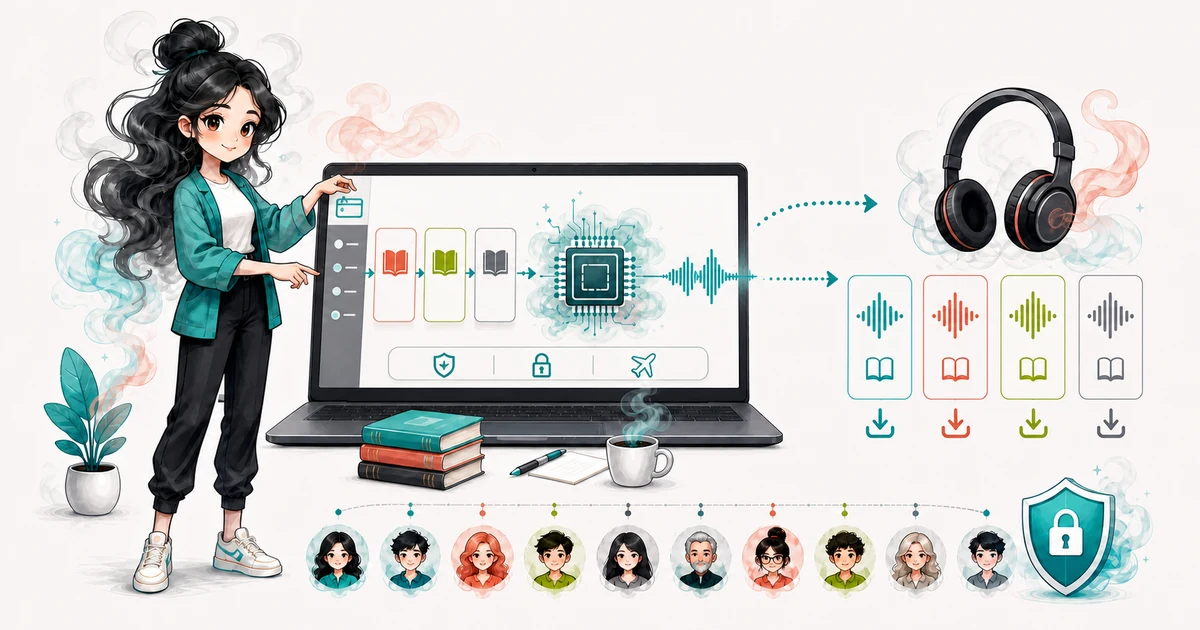
Create private listening copies of your own notes, drafts, stories, or public-domain text.
Download spoken instructions or study notes as a standard MP3 file.
Turn permitted Markdown headings or an EPUB reading order into named, reorderable chapter MP3s.
Give narration, quoted sections, or dialogue chapters different fixed voices while keeping one model loaded.
Use Supertonic for multilingual text or compare Kokoro fixed voices for US and UK English.
Create accessibility or study audio without a server queue, account, or paid processing plan.
One 128 kbps MP3 held in the browser tab for listening and download
Local audio playback and an MP3 download without uploading the notes
Two labelled MP3 results and one ordered audio-only ZIP from the same loaded Kokoro model
English speech from full-precision WebGPU or the automatic q8 compatibility fallback as a downloadable MP3
Need a slower walkthrough, a related generator, or the full library? These links keep you close to the task you started.
Plain-language answers about text input, MP3 downloads, browser processing, model downloads, language and voice limits, rights, pronunciation checks, and device limits.
Paste text or open a local TXT, Markdown, or EPUB file with up to 10,000 characters combined. Choose single or chapter mode, compare the voice samples, select a language, voice, and speed, accept the rights notice, then generate and download the MP3 files.
No. Each fixed voice has a short pre-recorded MP3 sample. Playing it downloads only that small audio file, not the Supertonic or Kokoro model, and it does not use your text.
The main input is up to 10,000 characters of permitted text, either pasted directly or opened locally from TXT, Markdown, or EPUB. Choose one MP3 or named chapters, then select a browser model, language, fixed voice, and reading speed. Document parsing, inference, and MP3 creation all run in the browser.
Check the estimated duration and file size, then allow the selected model download to finish. Listen for names, numbers, abbreviations, and missing lines. Single mode gives one MP3; chapter mode gives separate ordered MP3s and a text-free ZIP.
Check that you have permission to convert the text, that it contains no sensitive information, and that the selected model, language, and fixed voice fit the material. Listen for names, numbers, abbreviations, missing lines, and pronunciation errors before sharing the audio.
No. The text stays in your browser tab and is sent only to the local browser worker. It is not uploaded to Access Free Tools or included in requests to the model host.
The selected Supertonic or Kokoro model runs in a dedicated worker inside your browser. Access Free Tools serves the page, while pinned model files are downloaded from Hugging Face only after you start generation.
No. Your text is not uploaded. It stays in a worker inside this browser tab, and the generated MP3 is held in a temporary browser URL for the current tab. Download the file before closing or refreshing the page.
Yes. The browser encodes each result as a 128 kbps mono MP3. Single mode provides one file. Chapter mode keeps separate ordered MP3s and can package completed chapters in a ZIP that contains no source text.
Yes. Choose one browser model for the chapter set, then assign any fixed voice from that model to each chapter. Kokoro can mix its US and UK English voices and uses the matching dialect for each chapter. The queue keeps one model loaded and changes only the small voice file when needed.
No. Supertonic best effort processes text without a named language; it is not language detection. Kokoro does not offer that option and its current browser path supports only US and UK English.
No. The pilot offers 10 fixed Supertonic presets and 28 fixed Kokoro voices for US and UK English. It does not support voice uploads, cloning, reference audio, or custom voice data.
You can convert up to 10,000 characters at a time, either as one text or across up to 100 chapters. TXT and Markdown files can be up to 64 KB, and EPUB files can be up to 8 MB. Oversized or unsafe documents are rejected instead of silently truncated.
No. The browser reads and parses the selected document locally. Remote resources, scripts, encrypted EPUBs, unsafe archive paths, nested archives, and suspicious compression are rejected. Only the chapter text you review is passed to the local speech worker.
No. Use text you wrote, public-domain text, or material you have permission to convert. You must also follow the model license, prohibited-use terms, copyright rules, and any limits on sharing the resulting audio.
No. Text-to-speech can misread names, abbreviations, formulas, code, dates, phone numbers, mixed languages, and unusual punctuation. Double-check the MP3 by listening, then correct the text before generating again.
Supertonic downloads about 398 MB and prefers WebGPU, with a slower WebAssembly fallback. Kokoro downloads about 326 MB for full-precision WebGPU or about 92 MB for its automatic q8 WebAssembly compatibility mode. Generation time also depends on text length, section count, connection speed, and device memory.
Choose Supertonic when you need one of its 31 named languages. Try Kokoro 82M HQ for US or UK English and a more natural English voice choice. Kokoro prefers full-precision WebGPU and can retry with a smaller q8 WebAssembly model when compatibility mode is needed. Both use fixed voices, stay in the browser tab, and need a listening check before you rely on the MP3.